





Storefront
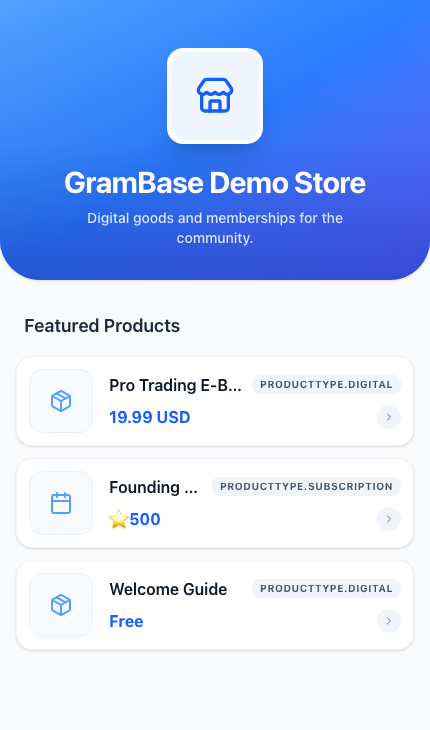
Group products into a storefront buyers can shop from inside the bot or as a full page, brand it, and share one link.
Before you start
- You have at least one active product. A storefront with no products still works, but has nothing for a buyer to see.
- You are a team member with the manage_products permission.
A storefront groups a subset of your products behind one shareable link. Buyers open that link and see only the products you added, in the order you put them. You can run more than one storefront from the same team — separate stores for separate audiences, campaigns, or bots.
Two ways to shop
Every storefront renders one of two ways, set per store (or per product) in Settings → Buyer shopping surface:
- Bot Menu — the storefront runs entirely inside the Telegram chat, as a sequence of photo messages with inline buttons. Nothing to open, nothing to load.
- Mini App — the storefront opens as a full page inside Telegram.
Crypto checkout always opens the Mini App page regardless of this setting, because it needs more room than a chat message can host — Stars and free checkout are the two rails that stay entirely inside the chat.
Create a storefront
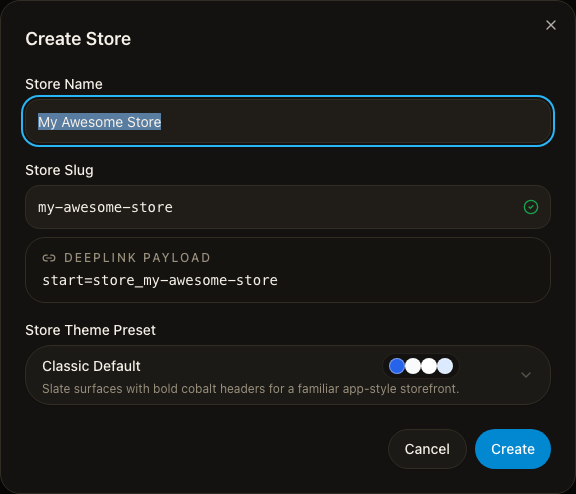
Go to Storefront and choose Create Store. The dialog asks for a Store Name (up to 100 characters), a Store Slug (up to 60 characters, unique across every team on GramBase — it auto-fills from the name until you edit it, with a live availability check), and a Store Theme Preset (one of seven: Classic Default, Royal Violet, Sunset Orange, Mint Glow, Minimal Gray, Forest Night, Pink Sweetheart). Creating the store opens it directly into its Products tab.
Inside a store, Settings holds Store Identity (name, description, logo), Brand Preferences (banner image, theme preset), Buyer shopping surface (the Bot Menu / Mini App toggle above), and Slug Control. The store header also carries an Active/Inactive toggle. A Danger Zone card deletes the storefront — the shell and its product-visibility entries, never the products themselves.
The Products tab shows how many of your active products are currently
visible ({{visible}} of {{total}} active products). Add Products opens
a search picker; each row has a remove action that only takes the product
out of this storefront. Drag a product to reorder it — that order is what
buyers see.
Shopping inside the bot
In Bot Menu mode, every screen is a single photo message GramBase edits in place as the buyer taps buttons, rather than sending a new one each time. The home screen lists every store the team has — Bot Menu and Mini App stores can sit side by side — and opening a store lists its products one button per row, paginated with Prev / page picker / Next.
A product card is capped at 1024 characters of caption (a Telegram photo message limit, shorter than an ordinary text message). The photo is the product’s cover image, a re-cast of its cover video, or a branded default.
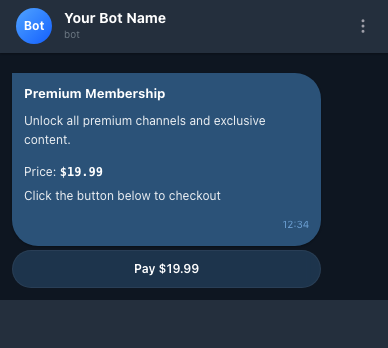
Tapping a product opens a Pay button (or a tier picker first, for a subscription) — Stars and free products complete right there in the chat; crypto hands off to the Mini App page, as above.
Buyers reach a store or product through /start (shows the store list),
/stores, a storefront deeplink (app=store_<slug> payload), or a direct
product link (buy_<id> payload) that skips the store list entirely. Every
card also carries a 🌐 Language button — picking a language re-renders
the same card the buyer was looking at, and the choice is saved for next
time.
Share a storefront link
A storefront is reachable two ways, and both point at the same store data:
- Inside Telegram —
https://t.me/<your bot>?start=app=store_<slug>. The storefront header’s Share / Copy Store Link actions hand out this link; Preview Store opens it directly. - On the web — the storefront also has its own public page at
/s/<slug>, independent of any bot.
Storefront translations
The Translations tab holds per-language versions of the storefront’s name and description. A buyer viewing a language you haven’t filled in sees the original content instead of a blank field. Fill each language by hand, or use Generate with AI to draft every target language at once from a source language, for review before you save.
Known limits
- A storefront is a curated list, not a taxonomy. Deleting one removes the shell and its product-visibility list; it never deletes the products themselves.
- Changing a storefront's slug changes its Telegram deeplink target immediately. Links built from the old slug stop opening this storefront.
- Crypto checkout always hands off to the Mini App page, even inside an otherwise bot-only store. Only free and Telegram Stars checkout stay entirely inside the chat.
- There is no multi-item cart. A buyer picks one product (and one tier, for a subscription) and pays for it; a second purchase is a separate pass through the flow.
Related
Was this page helpful?
Thanks — noted.