



Localization
One Pro switch in Team settings that has AI translate your catalog, delivery messages and bot texts into your buyers' languages — plus how support and broadcast translation fit in.
Before you start
- A Pro plan. Localization is a Pro feature; on Hobby and Lite the switch is locked and buyers see your original content.
GramBase translates your buyer-facing content for you. On a Pro plan you turn localization on once, and the AI keeps your catalog, delivery messages and bot texts translated into the languages your buyers actually use. This page covers that switch, what it translates, how you can still correct a translation by hand, and how support and broadcast translation relate to it.
Overview
One switch, in Team → Auto-translation. It is available on the Pro plan and applies to your whole team: products, storefronts, and your bots’ texts. There is no per-surface translation setting to manage.
Once it is on, saving a product, storefront or bot setting is enough. GramBase translates what you saved into every managed language in one background job. You do not click a generate button, and you do not run it again after each edit — the next save translates whatever changed.
A buyer sees the translation in their own language. If a language has no translation yet, or localization is off, they see your original content; nothing is ever blank because a translation is missing.
What gets translated
- Products — name, description, each pricing tier’s name, the delivery message text and its button labels, and the group-invite message text and button labels. See Products and Delivery.
- Storefronts — name and description. See Storefront.
- Bot texts — the welcome message and its buttons, the bot profile (name, description, short description), custom commands’ descriptions and replies, and the support welcome, receipt and offline-reply messages. The built-in commands are localized by GramBase itself and are not something you edit.
Prices and pricing-tier durations are not translatable, so a translation can never change them. Links and proper nouns are instructed to stay as written.
Which languages are managed
GramBase manages the languages your buyers actually use, up to the 14 languages the platform supports. The list is taken from your contacts’ Telegram languages, shown read-only on the Localization page, and only grows: one buyer in a new language is enough to add it. Your own source language is not translated into itself.
When a new language appears, existing content is translated into just that language in the background.
Turning it on
Open Team → Auto-translation and switch on automatic translation (it needs permission to manage the team; every member can read the page). GramBase then translates your existing products, storefronts and bots in the background, and the page shows how many are generating, ready or failed. A failed one can be retried from there.
If you were already on Pro with translations saved before this feature, it is switched on for you and your existing translations keep working; nothing is regenerated or charged for that.
What it costs
- Content translation: 10 credits per job. One save that triggers a job costs 10 credits however many languages it fills. Turning localization on or adding new languages runs as a batch that is charged once for the whole batch. Usage appears under AI translation in your billing usage.
- A job that cannot be completed, or that fails GramBase’s content check, is not charged. If your balance is too short, the job fails with a clear reason and can be retried after you top up.
- Support inbox translation: 1 credit per translated message. You translate buyer messages one by one on every plan, and automatically on Pro (below).
- Broadcast auto-translate: 50 credits per send. See below.
Correcting a translation by hand
Automatic translation is the default; the translation editor is the fallback. Open a product, storefront or bot’s Translations tab to see every field per language, tagged as AI or Manual.
- Edit one cell. Change any single language’s text for any field. A hand edit is saved immediately and costs nothing — the editor never calls the AI.
- Manual edits survive saves. A hand-edited cell is kept when you save other fields. It is regenerated only when the source text of that very field changes, and you are warned before saving that change.
- Restore an AI translation. Restore replaces the hand edit by regenerating that translation. It costs 10 credits and has no undo — the previous AI version is not kept, so the result can differ from before.
- Cells that are generating cannot be edited. They are locked until the job finishes; a failed job unlocks them, and you can retry it.
Editing is available only while localization is active on your team.
If you downgrade
When your team is no longer on Pro:
- Buyers see your original content straight away, in every surface.
- Translations already saved are kept, not deleted or rewritten.
- Pending jobs that have not been charged are cancelled without a charge.
- Your bots’ Telegram-side texts fall back to your original within about an hour, once GramBase has caught up. Built-in commands stay localized.
- The switch keeps its position but is locked; you can only turn it off.
When you return to Pro with the switch on, saved translations show again at once, and content that changed in the meantime is translated in the background. This resume batch costs 10 credits once, regardless of how many objects or languages it fills; saved translations are not charged again. Nothing is switched on automatically for a team that had it off.
Two-way translation in support
Support conversations in Support inbox can be translated in both directions: a buyer’s messages into your language, and your replies into theirs. Each direction has one place. A translated message costs 1 credit. A reply sent as written costs nothing, and so does a conversation whose buyer writes your language: no translation controls appear there at all.
Translate a buyer message, on every plan. Right-click a buyer’s message on a computer, or press and hold it on a phone or tablet, and choose Translate. The translation appears under the original and stays there. The first time a conversation’s buyer writes a different language from yours, a one-line hint under their first message tells you which gesture to use. Messages with no text, such as a photo or file without a caption, have nothing to translate.
Automatic translation, on Pro. The team switch that turns localization on (Team → Auto-translation) also translates buyer messages as they arrive, 1 credit each. You can still switch it off for a single conversation: open the buyer-language menu in the conversation header and turn off Auto-translate. New messages then go back to being translated one by one, and translations already shown stay. On Hobby and Lite the switch is locked; you translate messages one at a time.
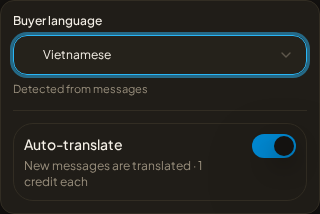
The buyer’s language is judged from the text they write; photos and files are skipped. You can correct it in the same header menu. A language known only from the buyer’s Telegram settings is shown as not confirmed, with a one-tap confirm, and your replies are not translated into it until it is confirmed or detected from their messages.
Your replies, on every plan. Once the buyer’s language is known and differs from yours, the reply box shows Send as with that language already selected, so you can see before sending what the buyer will receive. Open it to choose No translation or a different language; your choice is remembered for this buyer. A translated reply shows “Translated to” with the language and the text the buyer received. If your balance cannot cover the translation, the reply is sent as written and the label says so. A translation that fails or cannot be paid for never stops a reply from being sent.
Broadcast translation
A member broadcast can translate itself into each member’s language. It is Pro only and has its own switch on each send — separate from the team switch — and costs 50 credits per send, on top of the delivery cost. On a non-Pro plan the switch is locked and every member gets the original. If your plan drops below Pro before a scheduled send, that send goes out in the original and the 50 credits are not charged. Details, including editing a sent broadcast, are in Broadcast.
What translation never touches
- Prices never move. A price and a tier’s duration are not translatable fields at all.
- Links and proper nouns are instructed to stay put.
- A field you edited by hand is not silently overwritten — only a change to that field’s own source text, or an explicit restore, replaces it.
- Your reply in the inbox in your own language is sent as written, never run through the AI.
Where translation stops
- Group pinned and sticky messages and scheduled group messages are sent as one message in one language. AI copy polish can improve the wording of that one draft; it does not translate it.
- Broadcasts and inbox messages have no editor: they are translated as they are sent.
Known limits
- Automatic translation of your catalog, delivery messages and bot texts is Pro only. Without Pro, buyers always see your original content; translations already saved are kept and shown again once you are back on Pro with the switch on.
- Restoring an AI translation after a hand edit regenerates it for 10 credits and cannot be undone — the previous AI version is not kept.
- A field that is still generating cannot be edited. Wait for it to finish, or for a failed run to be retried.
- The languages GramBase manages are your buyers' languages, up to 14. You cannot pick them by hand.
- A language with no translation yet always falls back to your original content. It never shows blank or broken to a buyer.
Related
Was this page helpful?
Thanks — noted.